Create New Campaign |

|

|
|
Create New Campaign |
|
|
Create New Campaign |
|
|
|
Create New Campaign |
|
|
Prerequisites: Please make sure valid data is entered in following forms before creating a Campaign.
➢Type -> Path: File > Global Settings > CRM Lists > Campaigns > Types
➢Category -> Path: File > Global Settings > CRM Lists > Campaigns > Category
➢Status -> Path: File > Global Settings > CRM Lists > Campaigns > Status
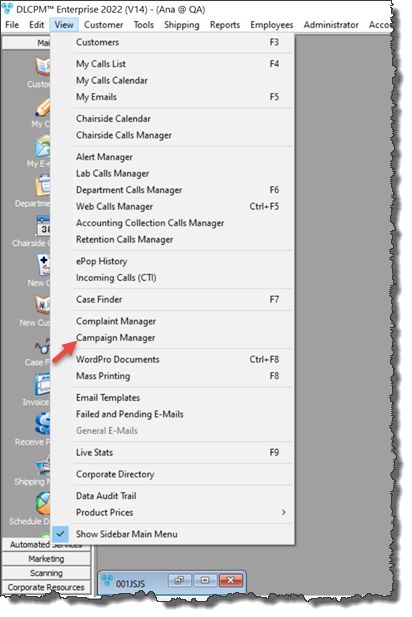
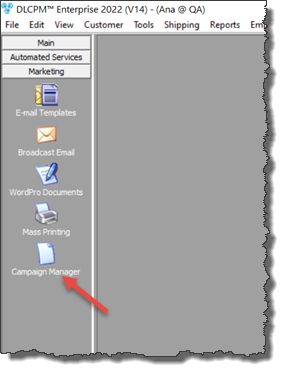
Navigation: View > Campaign Manager or Left Side menu > Marketing > Campaign Manager icon
View > Campaign Manager |
Left Side menu > Marketing > Campaign Manager icon |
|---|
The Campaign Manager form opens:
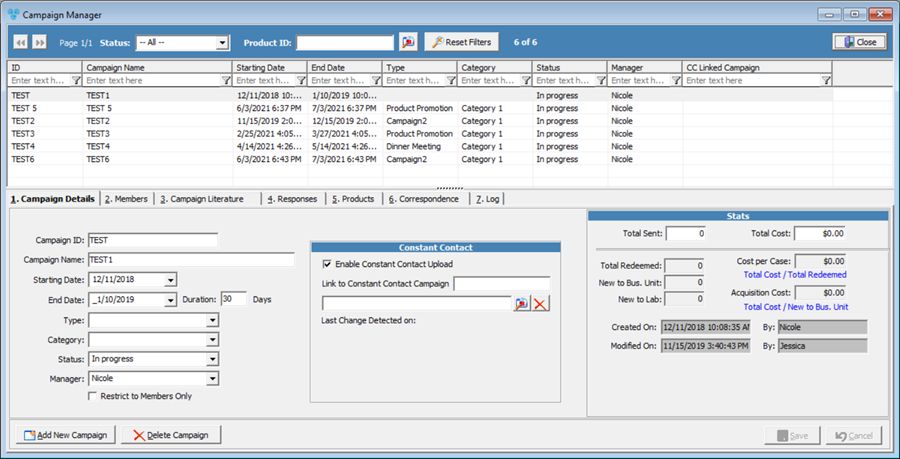
Campaign Manager
•Select the  button located in the bottom left.
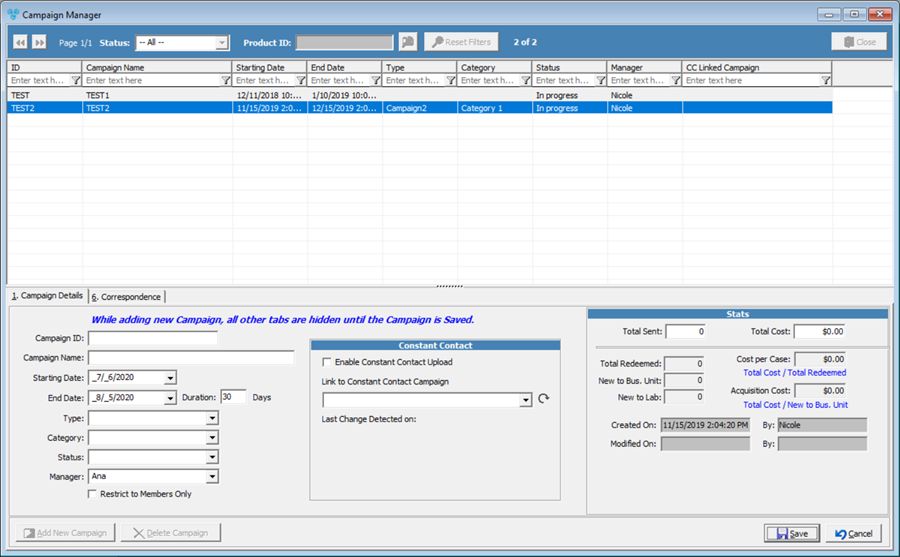
Add new Campaign
•This will blank out most fields, and remove some tabs as well. Note that while adding a new campaign, only 2 tabs will display.
•Enter the following fields accordingly:
•Campaign ID – This should ideally be something short and easily identifiable.
•Campaign Name
•Starting Date
•End Date – This will automatically populate a number in duration. You can also enter a number in the Duration field, which will populate the End Date.
•Type – i.e. Product promotion, cross sale, etc.
•Category – i.e. Corporate, Lab, etc.
•Status – i.e. In Progress, Complete, New, etc.
•Manager
•Restrict to Members Only
•Click  to create the new Campaign.
•Please see the Constant Contact and Stats topics for information about these sections.
•Navigate to your requested category:
See Also: