V16.0.43 Feature Spotlight: Case Notes Communication Template Picker |

|

|
|
V16.0.43 Feature Spotlight: Case Notes Communication Template Picker |
|
|
V16.0.43 Feature Spotlight: Case Notes Communication Template Picker |
|
|
|
V16.0.43 Feature Spotlight: Case Notes Communication Template Picker |
|
|
What’s New
This enhancement adds a template picker to the case communication email workflow in DLCPM Enterprise, along with previewing merge field data on the email’s subject line.
In plain language: when preparing a case communication email, users can select a pre-built email template, see the final email exactly as the recipient will receive it with merge fields like [DoctorName] and [CustomerID] filled in the email’s subject line, edit the body if needed, and send without relying on test-send workarounds.
The Pain Point (and How It’s Gone)
Problem it solves:
•Previously, merge fields such as [DoctorName] or [CustomerID] added on the email’s subject line could not be previewed before sending. Users had to rely on the Send Test feature as a workaround, which was slow and did not allow inline edits.
•There was no streamlined way to reuse multiple standardized email content for recurring case communication scenarios.
•Users expected behavior similar to common email-template tools: insert a template, see the populated result, adjust, and send.
Outcome it improves:
•Greater confidence that emails are accurate before they reach the customer.
•Faster email composition for repetitive case communications.
•Fewer errors caused by unresolved or incorrect merge fields.
Target Audience
Audience |
How they benefit |
Lab staff sending case communication emails |
Faster, more accurate email composition with templates and preview. |
Lab managers / admins |
Can create and maintain standardized email templates. |
Customer-facing labs with high email volume |
Biggest time savings because template reuse eliminates repetitive drafting. |
Where It Fits In Your Day
This feature comes into play at the communication step of the case workflow, specifically when a lab user needs to email a customer about a case, such as status updates, case notes, instructions, or follow-ups.
It is used before the email is sent, during the compose and review stage.
Key Benefits
•Saves time - Reusable templates eliminate repetitive drafting for common case communication scenarios.
•Reduces errors - Merge-field preview catches unresolved or incorrect values before sending.
•Increases confidence - Users see the exact final email, including body and subject, before it reaches the customer.
•Improves communication quality - Standardized templates ensure consistent, professional messaging.
•Simplifies the workflow - Replaces the test-send workaround with a single preview step.
•Preserves flexibility - Editable body means templates are not rigid; users can still personalize per case.
How to Use It
1.Open a case communication email - Navigate to a case and initiate an Case Communication email.
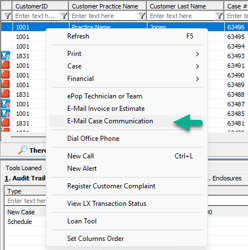
2.Select a template - Use the template picker form. It lists templates from the dedicated Case Communication folder.
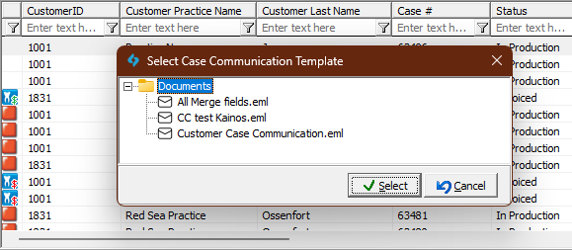
3.Preview the email - Once a template is selected, the system would open up the module to compose the email.
4.Edit if needed - Modify the email body directly after the template is applied. Personalize or adjust for the specific case.
5.Send - Deliver the email with confidence that merge fields are resolved and content is correct.
If no template is available from the dedicated Case Communication folder, the system behaves exactly as before, so existing workflows are not disrupted.
What You’ll Need
Requirement |
Detail |
Product version |
ENT 16.0.43 or later. |
Server configuration |
|
Template setup |
Templates must be created and placed in the Case Communication folder before they appear in the picker. |
Backward compatibility |
If no template is in the folder, existing behavior is preserved. |
Ready to Get Started?
•Support: Contact Magic Touch Support team for help on configuration or questions about template setup.
•Check out the Feature’s dedicated Help Article.