Nightly Invoices |

|

|
|
Nightly Invoices |
|
|
Nightly Invoices |
|
|
|
Nightly Invoices |
|
|
Usage:
Nightly Invoices can be used to automatically send Customers pdf Invoices for all Cases Invoiced on the configured date.
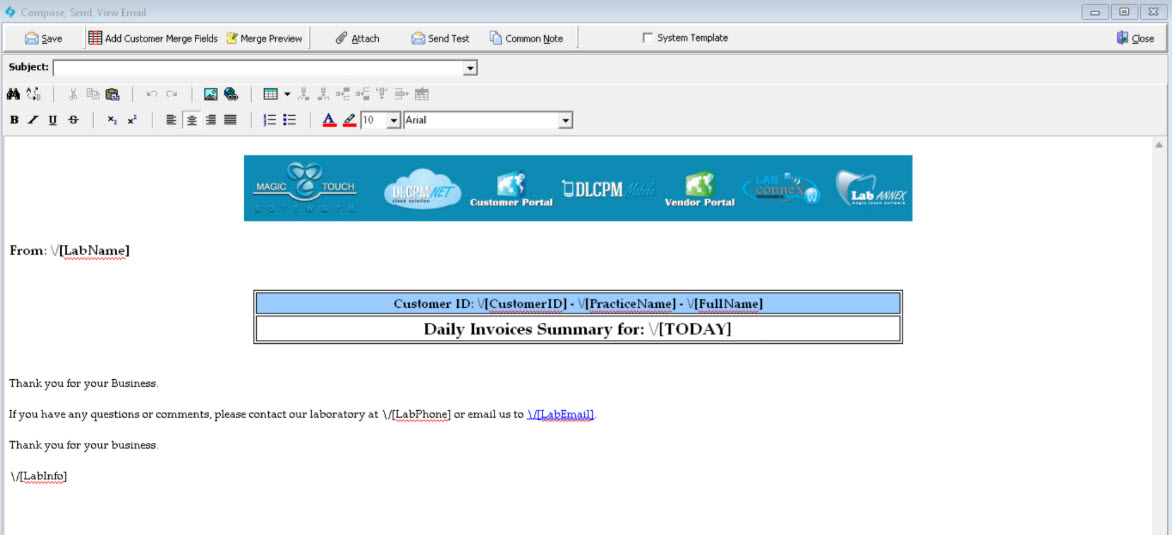
1. Create a custom Email Template
Please note, the Nightly Invoices will be based on the Case's Invoicing Lab therefore each Invoicing Lab can have their own customized Template and Logo.
•Navigate to Marketing > E-Mail Templates > System Templates folder > select the NightlyInvoice.eml > Make Copy > select custom folder > enter File Name > select > customize the Email Template.
•Please refer to the Merge Fields help article for a list of available Nighty Invoice Merge Fields.
------ Steps 2 and 3 should be completed for each Invoicing Lab ------
2. Assign the Email Template to each Invoicing Lab.
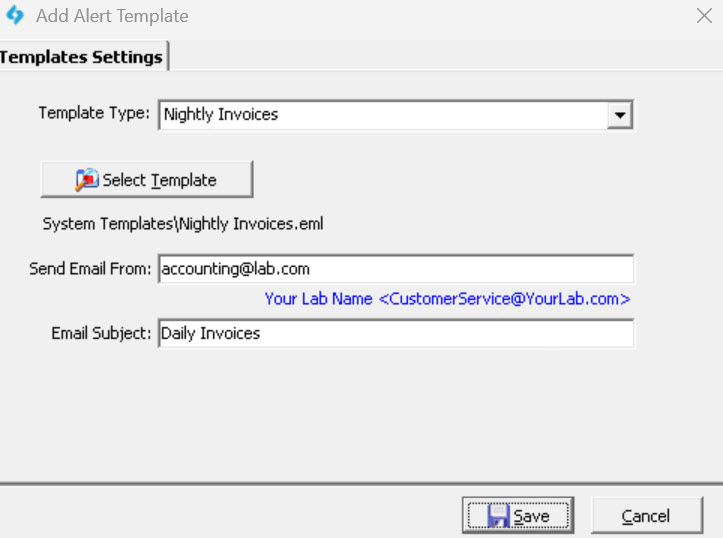
•Navigate to Global Settings > Laboratory Lists > Laboratories > select Lab > edit > Lab Templates.
•Add a new Template > select Template Type 'Nightly Invoices' > click 'select Template' to choose the Email Template created in step 1 > enter Send Email and Email Subject > Save
Please reach out to support@magictouchsoftware.com to request a custom NightlyInvoices form for your Lab.
4. Configure Nightly Invoices Job Parameters
•Navigate to Automated Services > Job Management > select the Nightly Invoices Job > Modify Job
•Update the corresponding parameters
oParameter 1: If set to 0, all Cases Invoiced/Shipped on the current day will be included. If set to 1, all Cases Invoiced/Shipped on the previous day will be included.
oParameter 2: If set to S, Cases will be included based on Shipment Date. If set to I, Cases will be included based on Invoice Date.
oParameter 3: If set, only the selected Lab's Customers will be notified.
oParameter 4: If set to 1, Credit Memos will be included. If set to 0, Credit Memos will not be included.
oParameter 5: If set to 1, Adjustments will be included. If set to 0, Adjustments will not be included.
oParameter 6: Controls which adjustment types are included when Parameter 5 is set to 1. Set to FC to include Finance Charges only, VD to include Volume Discounts only, or FC/VD to include both. If left blank or set to an unrecognized value, both types will be included.
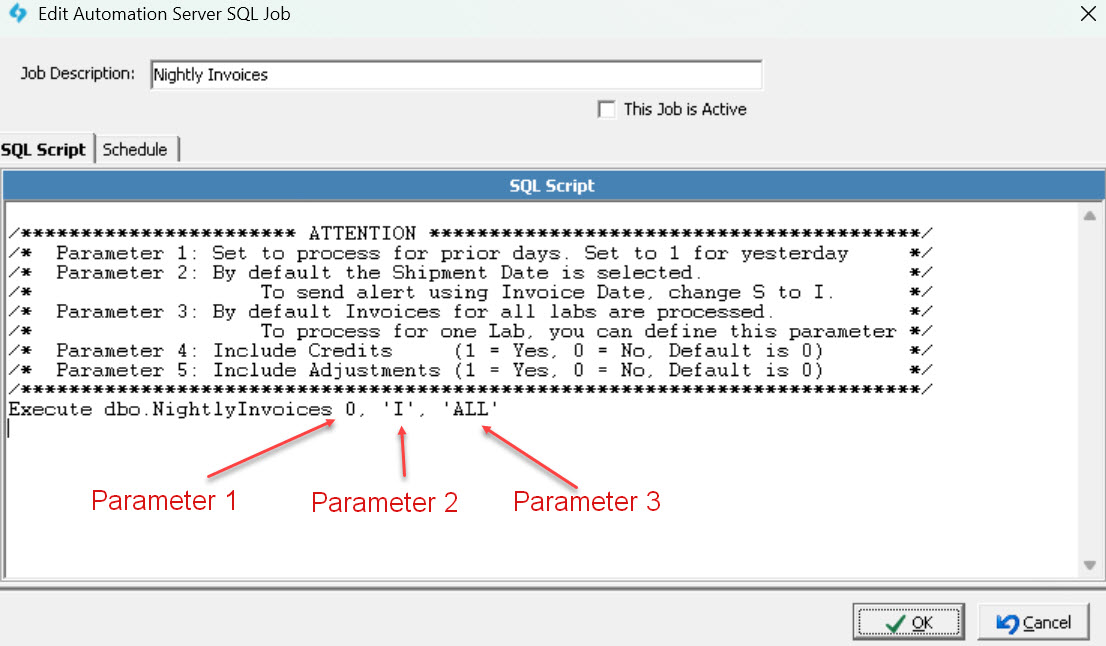
By default, only the first 3 parameters are set. To add parameters 4 and 5, add a comma then the parameter value. For example:

5. Schedule the Job
•After configuring the parameters, the schedule can be set using the Schedule tab.
•The job is expected to run once a day at the set time.
•There is also an option 'Do not run the job on Weekends or Holidays' to ensure Customers only receive emails on Weekdays.
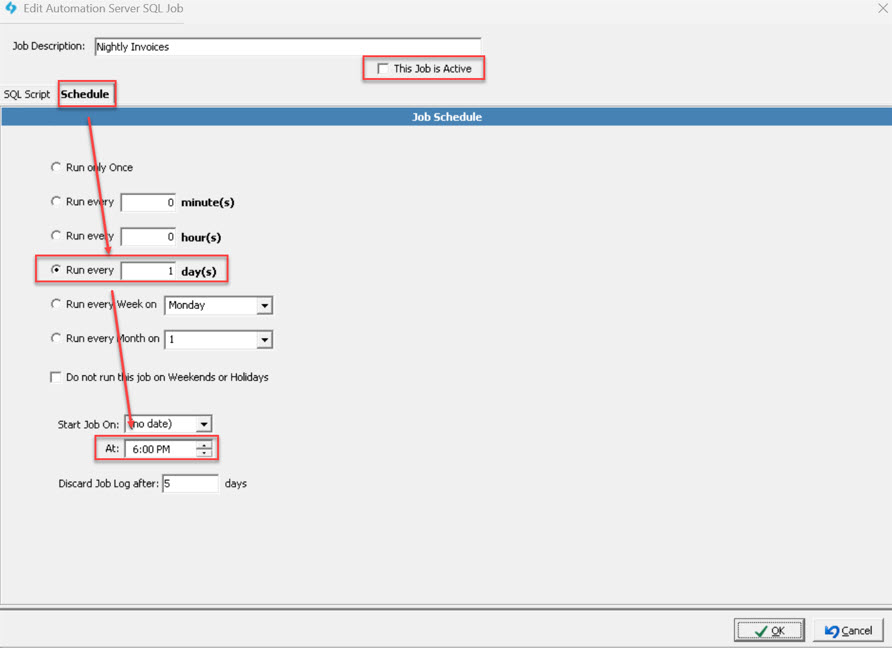
Once the schedule has been configured, check 'This Job is Active' and Save.
6. Enable Customer Settings
•The Nightly Invoices alert must be configured for each Customer that should receive the alert.
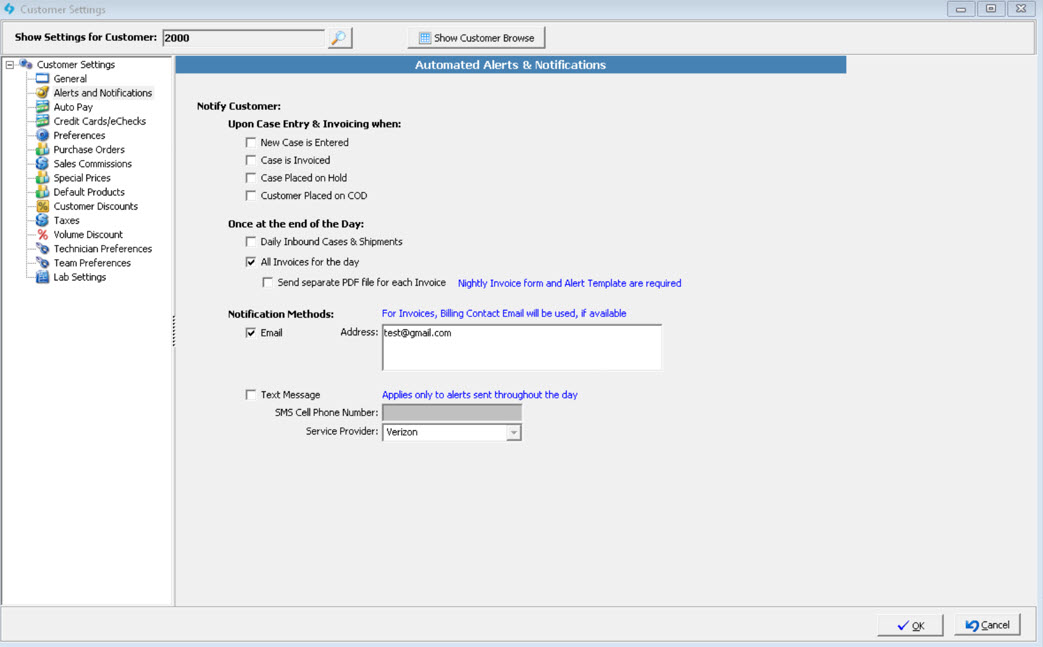
•To do this manually, navigate to the Customers form > select a Customer > Customer Settings > Alerts & Notifications > select All Invoices for the day. Please email support@magictouchsoftware.com to submit a database request to enable this Alert for all Active Customers.
•The option 'Send separate PDF file for each Invoice' can be enabled to ensure each Invoice is in a separate PDF. If unchecked, all Invoices will be in one PDF.
•The alert will be sent to the Customer's 5. Accounting tab Email.
7. Testing
•Before rolling out to all Customers, we would recommend enabling the Alert on a test Customer's Account then Invoicing/Shipping Cases.
•The 5. Accounting tab email should be set to that of the user testing the automation.