Regional Currency Formatting |

|

|
|
Regional Currency Formatting |
|
|
Regional Currency Formatting |
|
|
|
Regional Currency Formatting |
|
|
DLCPM uses regional currency and culture settings to display monetary values correctly for different countries. This is important for labs that operate internationally or use number formats that differ from U.S. English settings.
For example, U.S. formatting typically displays currency as:
"1,234.56"
German formatting typically displays the same value as:
"1.234,56"
If DLCPM is not configured correctly, amounts may display incorrectly on payment screens, case product screens, invoices, or other areas that show monetary values.
Incorrect regional settings can cause monetary values to appear with the wrong decimal placement or separator format. In some cases, an amount may appear at 1/100th of its expected value.
Correct setup helps ensure:
•Payment amounts display correctly.
•Case product prices display correctly.
•Customer balances and invoices use the expected format.
•Users do not need to change Windows regional settings on their workstation or the App Server.
Changing Windows regional settings is not the recommended solution because it may affect other applications.
Customers can typically review and update the following items from DLCPM:
•Lab country
•Currency settings
•Currency symbol
•Decimal separator
•Thousand separator
•Currency symbol placement, if available
These settings should be reviewed together. The lab country and currency format should match the regional format the lab expects to use.
Some culture-related setup is controlled through internal database configuration and may not be editable from the DLCPM front end.
Contact DLCPM Support if you need to:
•Add or update a culture code, such as de-DE.
•Link a country to a culture code.
•Add or update culture translation values.
•Add a country that is not available in the country list.
•Confirm whether the database has the correct regional culture setup.
•Correct a regional formatting issue that persists after reviewing lab and currency settings.
Support may need to update internal configuration tables to complete these changes.
DLCPM uses a combination of settings to determine how monetary values should display.
The lab’s country identifies which regional culture should apply. The currency setup controls how currency values are displayed, including the symbol, decimal separator, and thousand separator.
For this reason, the lab country and currency settings should match the lab’s expected regional format.
For example, a German lab using Euro currency should have:
Country: Germany
Currency: EUR / Euro
Decimal Separator: ,
Thousand Separator: .
Open Lab Settings and select the affected lab.
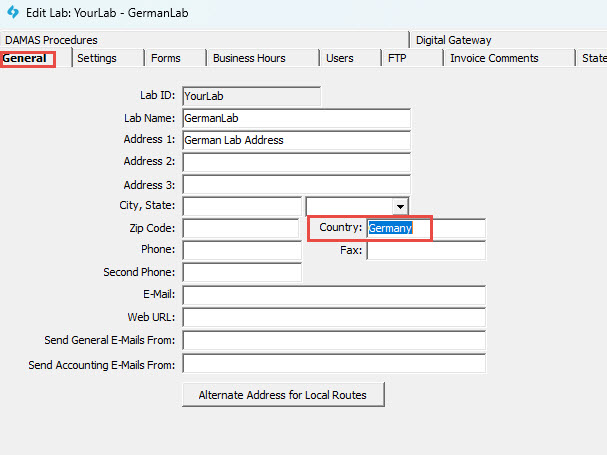
Confirm the lab’s country is correct.
For example:
Country: Germany
Open the currency settings area in DLCPM.
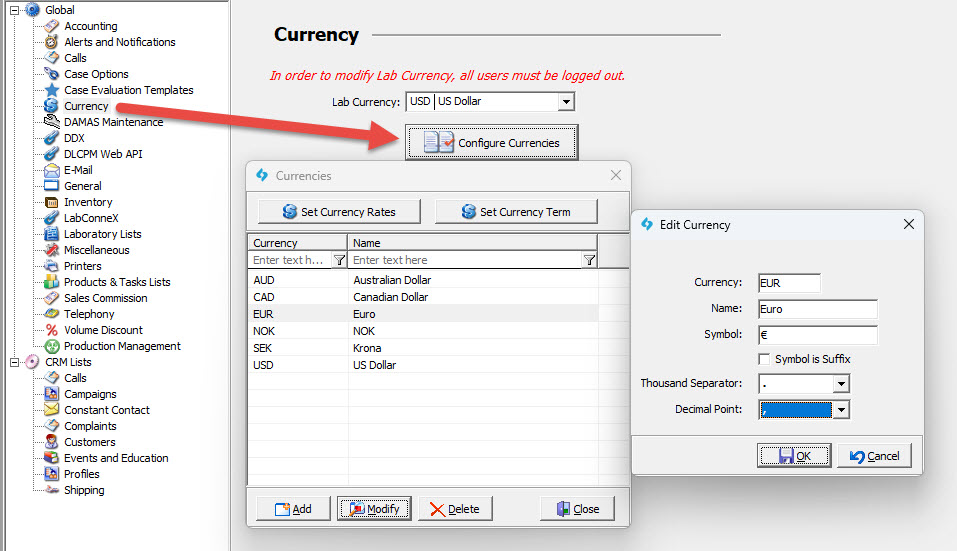
Confirm the correct currency is configured for the lab.
For example, a German lab using Euro currency should use settings similar to:
Currency: EUR
Symbol: €
Decimal Separator: ,
Thousand Separator: .
The decimal separator and thousand separator should not be the same character.
If the currency record is missing or cannot be edited, contact DLCPM Support.
If available, confirm whether the currency symbol should appear before or after the amount.
Examples:
Before amount: €1.234,56
After amount: 1.234,56 €
Use the format expected by the lab.
Save the updated lab and currency settings.
Close and reopen DLCPM after making changes.
This helps ensure updated regional settings are loaded correctly.
After setup is complete, test the configuration in areas that display monetary values.
Recommended areas to test:
•Payments
•Case products
•Customer balances
•Invoices or statements
•Special pricing, if used
Use a known test amount, such as:
"1234.56"
For German formatting, confirm the amount displays as expected:
"1.234,56"
Also confirm the value is not shifted by decimal places. For example, 1234.56 should not display as 12.34.
Contact DLCPM Support if:
•The correct country is not available.
•The correct currency is not available.
•Currency settings cannot be edited.
•Amounts still display incorrectly after reviewing the lab country and currency settings.
•A culture code needs to be added or corrected.
•Culture translation values need to be added or changed.
•Users are unsure which regional format should be used.
When contacting Support, provide:
•Lab name
•Country
•Currency
•Expected number format
•Example of the incorrect amount
•Screen where the issue occurs
•Whether the issue affects one user, one lab, or multiple users
Example support request:
Lab: Dental Lab Name
Country: Germany
Currency: EUR
Expected Format: 1.234,56
Incorrect Display: 12,34 instead of 1.234,56
Affected Screens: Payments and Case Products
The App Server does not need to be set to the country’s Windows regional format. For example, the App Server does not need to be changed to German regional settings for a German lab.
Workstations also should not need to change Windows regional settings as the primary fix.
DLCPM should be configured through lab, country, culture, and currency settings. If those settings are missing or not available in the front end, DLCPM Support can review and update the internal configuration.