Office 365 Email Setup |

|

|
|
Office 365 Email Setup |
|
|
Office 365 Email Setup |
|
|
|
Office 365 Email Setup |
|
|
Usage: This guide will assist Magic Touch customers with setting up an Entra App Registration in order to send and read e-mails through their Office 365 tenant.
1. Navigate to https://entra.microsoft.com.
2. Click on Enterprise applications to expand it, then click on App registrations.
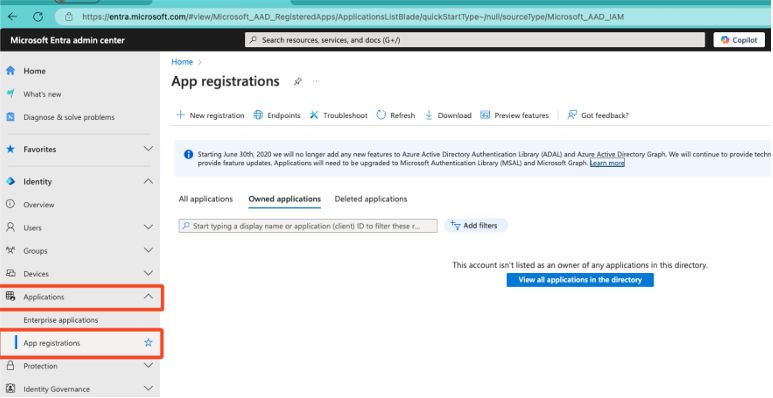
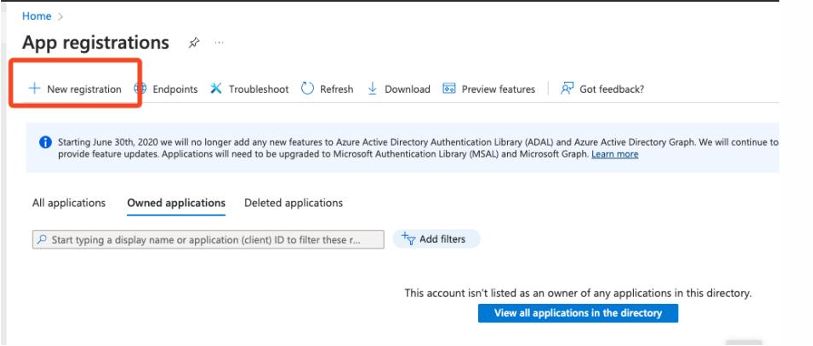
3. Under App registrations click New registration.
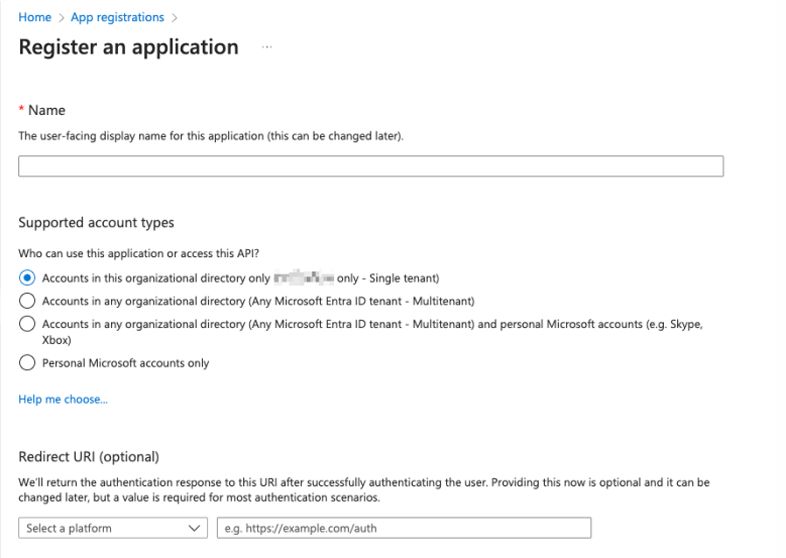
4. Provide a name for the application. Choose Accounts in this organizational directory only and then click Register.
5. Click API permissions and click Add a permission to add the necessary permissions to send and read emails.
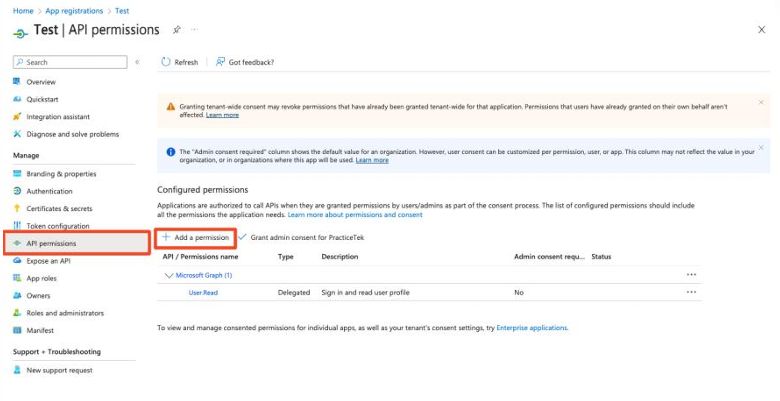
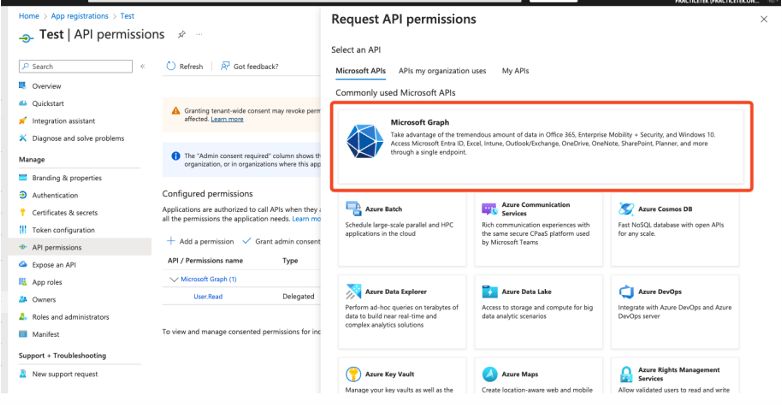
6. Click Microsoft Graph.
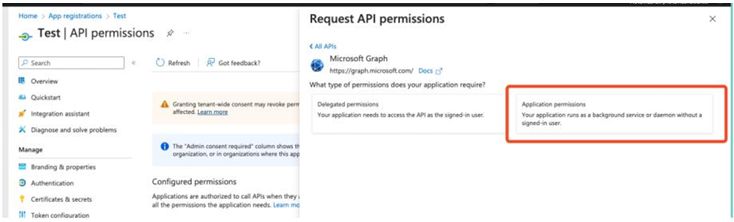
7. Click Application permissions.
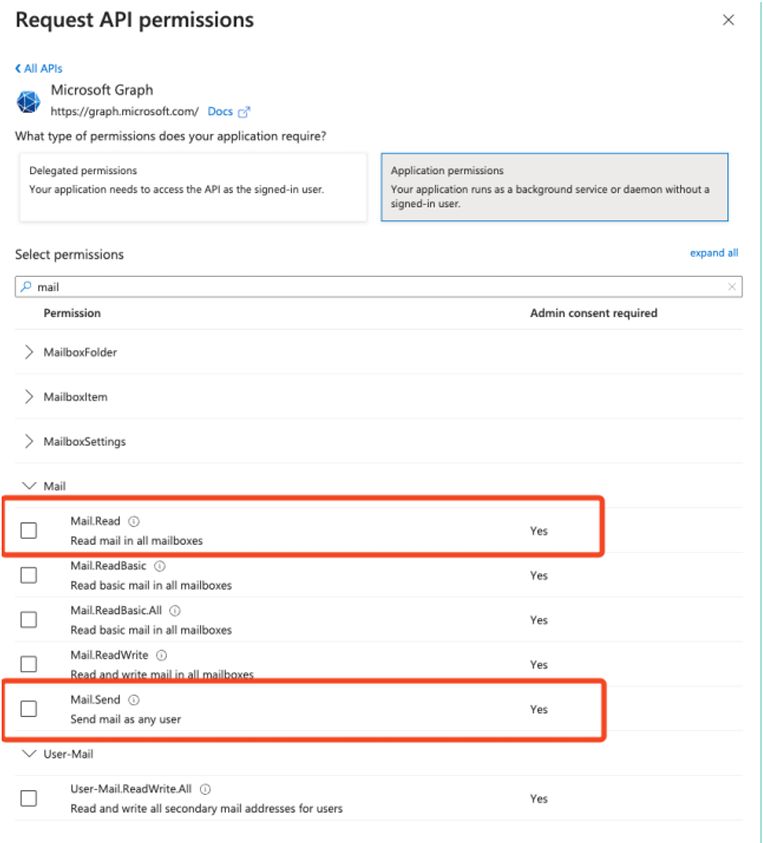
8. Select Mail.Read and Mail.Send from the available permissions.
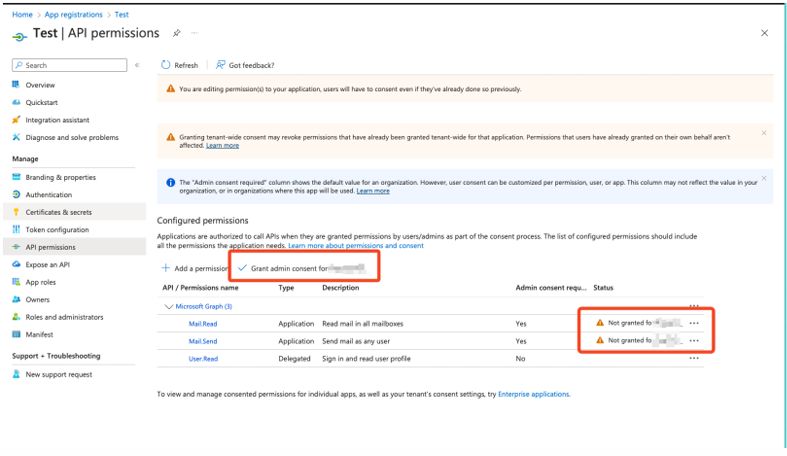
9. Once added, click Grant admin consent for {your tenant} to grant the necessary permissions. Please confirm that the permissions have been granted. The status will change from Not Granted to Tenant to Granted with a green checkmark.
10. Next, click Certificates and Secrets.
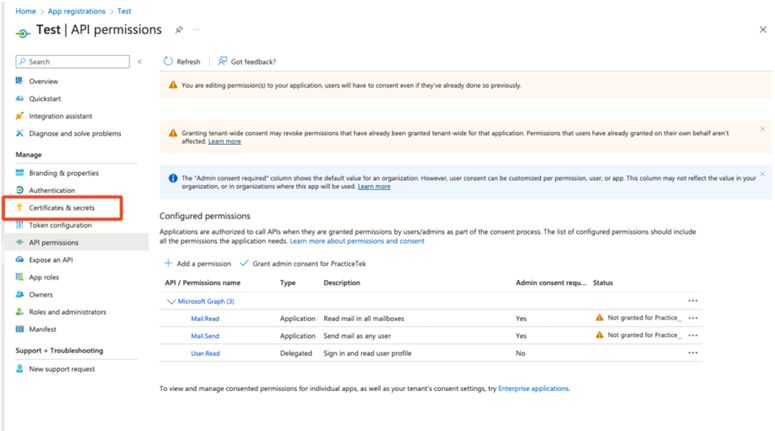
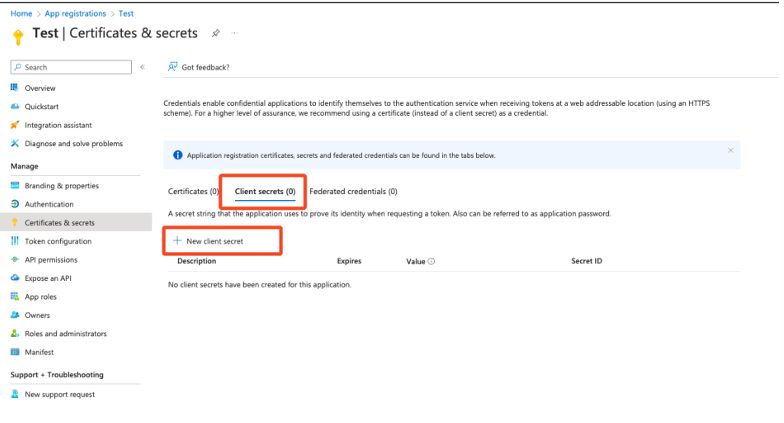
11. Click Client secrets (0) and then click New client secret.
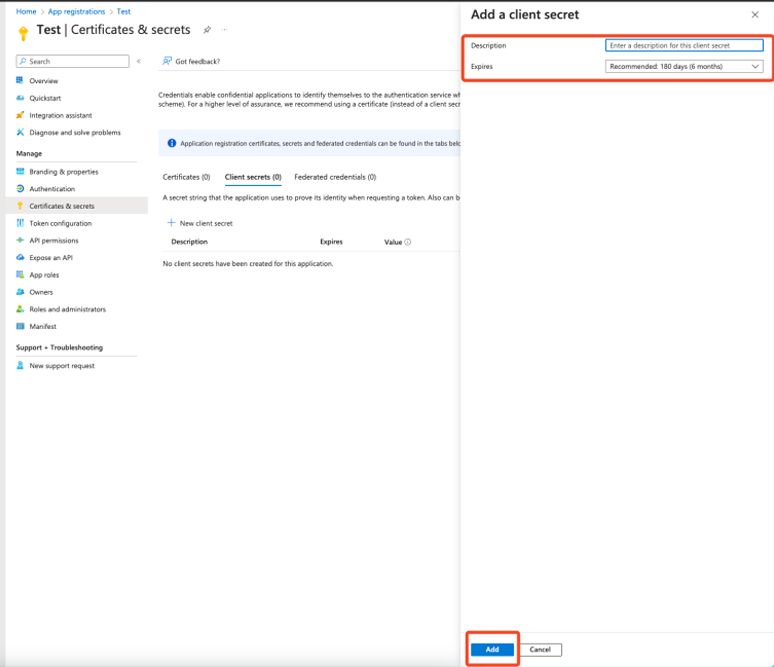
12. Provide a description for the client secret, choose when the client secret expires, and then click Add.
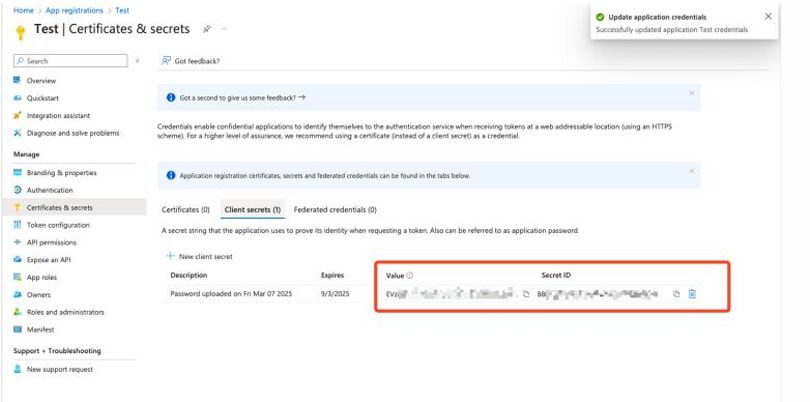
13. Copy your client secret Value and Secret ID to a safe location. The client secret value can only be viewed for a short period of time. Please note that the Value should be entered into the Client Secret field in DLCPM.
14. Click Overview and then copy your Application (client) ID and Directory (tenant) ID to a safe location.
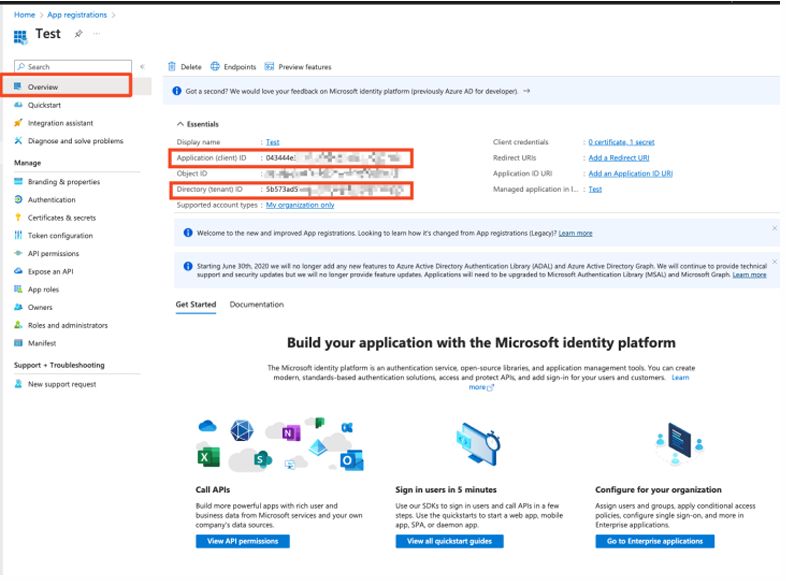
15. Insert the client secret, application (client) ID, and directory (tenant) ID into the MagicTouch Global Settings > Email menu. In the UserID field, assign the desired mailbox for sending mail. This should be the main email address for the lab or user specific email addresses in the user’s Personal Settings.
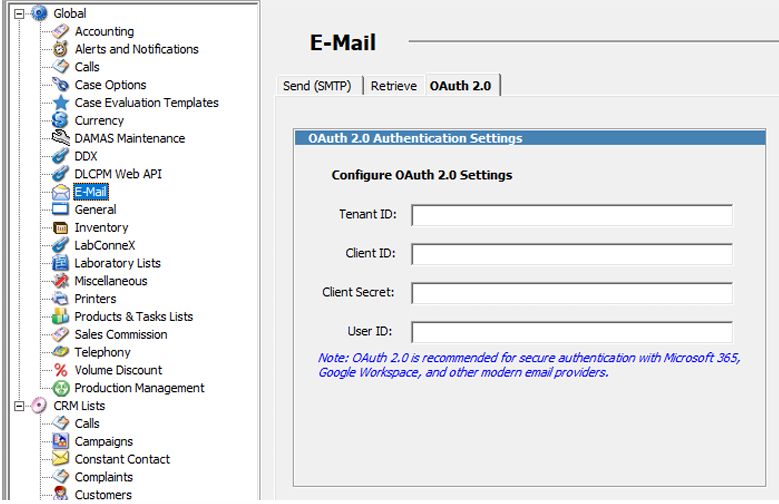
16. Office 365 and DLCPM are now configured to send email using the configured mailbox. At this point, the lab can test sending emails to verify everything is configured correctly.
Additional Notes: Depending on the Azure configuration the Azure AD app needs to be registered on the EXO side as a Service Principal. Please note this requires FullAccess permissions in order to send/read email from Office 365. If you need additional help, please contact Microsoft support.