Email Common Notes |

|

|
|
Email Common Notes |
|
|
Email Common Notes |
|
|
|
Email Common Notes |
|
|
Usage: Common Notes in Emails
Common Notes allow users to reuse standard text when creating emails. This helps teams keep messaging consistent and saves time when sending frequently used responses, updates, or instructions.
They are a shared DLCPM feature, but emails can only use Email-type Common Notes through the Send Email window. This includes Case Communications emails and other email workflows that use the same Send Email screen.
Before You Begin
Common Notes must be created before users can select them in an email.
Each Common Note includes:
•Type
•Description
•Notes
•Inactive
For email workflows, the Common Note should be set up with the Email type. Inactive notes should not be used for new email messages.
How to Use a Common Note in an Email
1.Open an email workflow, such as Case Communications.
2.Open or create the email.
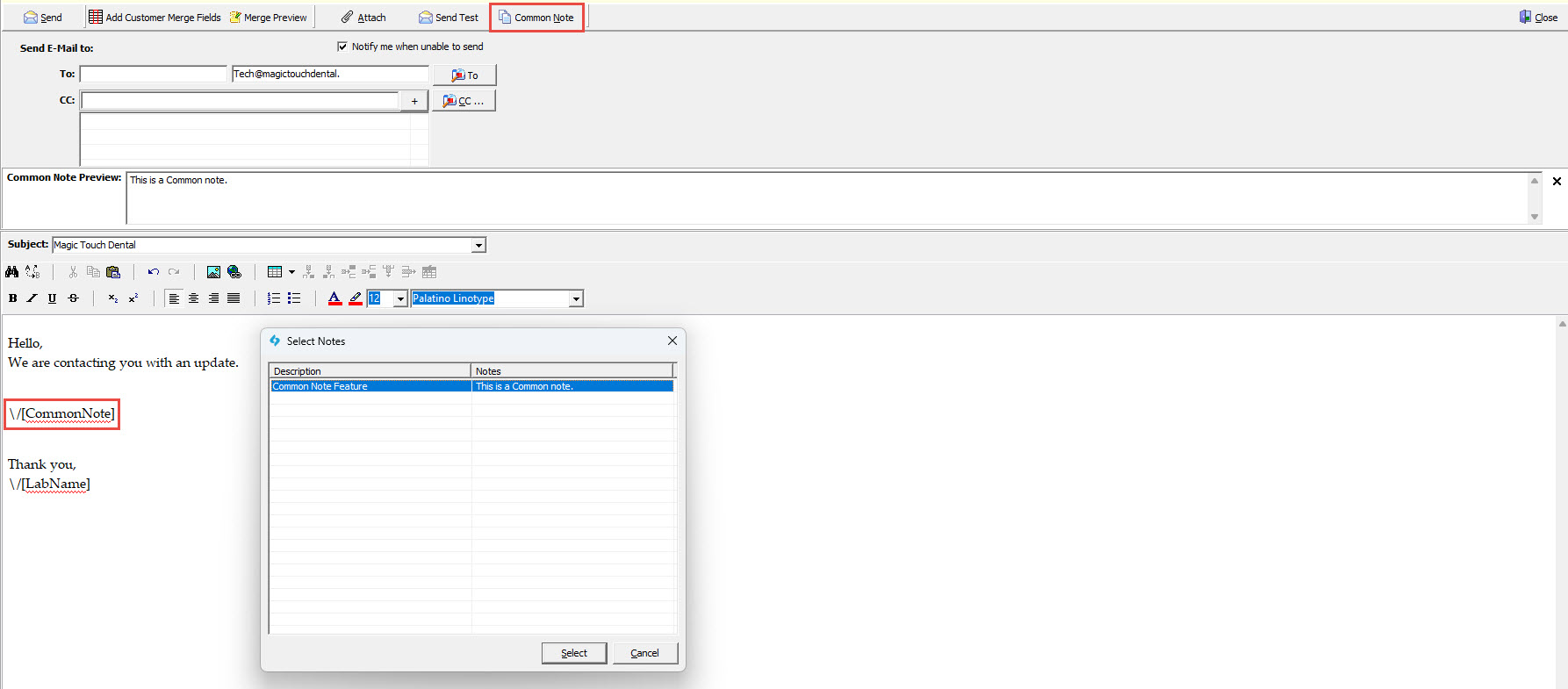
3.In the Send Email window, select the Common Note option.
4.Choose the Common Note you want to use.
5.Review the email before sending.
6.Click Send.
Adding Common Notes to Email Templates
To automatically place the selected Common Note into the email body, the email template must include this merge field:
\/[CommonNote]
When the email is previewed or sent, DLCPM replaces \/[CommonNote] with the selected Common Note text.
Example:
Previewing the Email
Use Merge Preview to confirm the final email before sending. The preview shows the selected Common Note along with any other merge fields included in the template.
Clearing a Common Note
If the wrong Common Note is selected, clear it before sending. This removes the selected note from the email.
Important Notes
The selected Common Note is only inserted if the template includes \/[CommonNote].
If the template does not include \/[CommonNote], selecting a Common Note will not add it to the email body.
Common Notes are reusable text snippets. Users should always review the email before sending to confirm the wording is appropriate for the recipient.
See also: