Submit an Rx |

|

|
|
Submit an Rx |
|
|
Submit an Rx |
|
|
|
Submit an Rx |
|
|
Navigation: Main > Cases > Submit RX
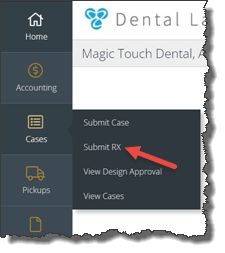
Submit Rx navigation
Following form displays:
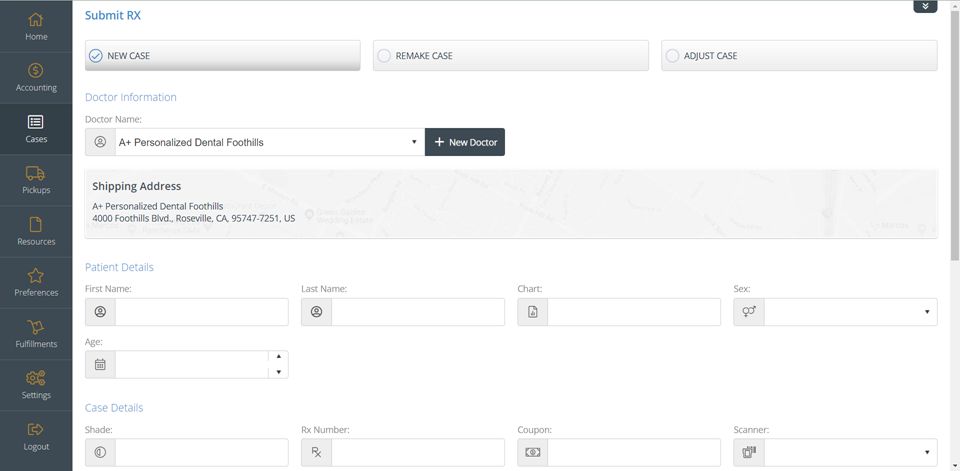
Submit Rx form
To submit Rx:
1.Following navigation path open Submit Cases form.
2.You will have to first complete the following fields:
•Case Type: New Case, Remake Case or Adjust Case.
➢ For New Case just go to next step
➢For Remake Case please enter Original Case Number and Remake Reason
➢For Adjust Case please enter Original Case Number and Adjust reason
•Doctor Name - select from dropdown or Add a new doctor
➢ Click ➢Enter all required details ➢Check Use this doctor address instead of Account Address if this is needed. ➢Click |
•Patient Details
•Case Details
•Add Products to the case
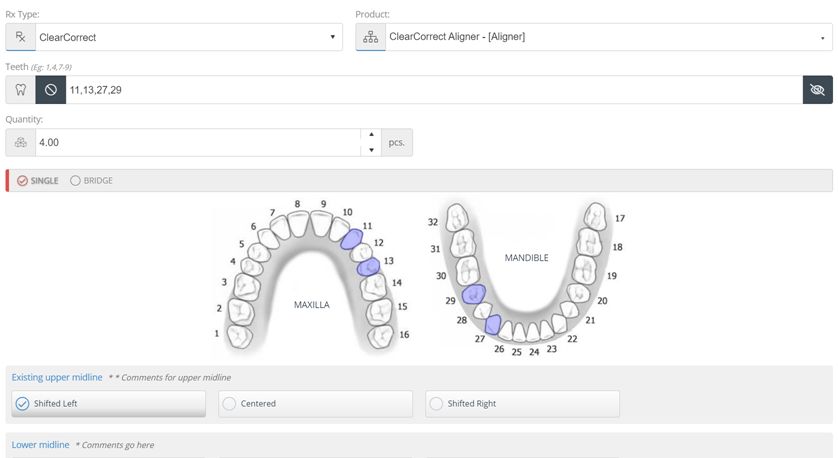
➢ Click ➢Once the Add product form is open, you will first need to select the RX Type. ➢Based on the RX Type selection, the product selection will display and the form will expand for selection of preferences and product instructions. ➢Thoroughly read all preferences & descriptions that populate and make the proper selections. ➢Select Product from the dropdown ➢Enter Teeth number manually or select the teeth in the image. You may add single tooth or bridge. ➢Quantity is automatically adjusted based on your teeth selection.
Add Product to case form ➢Click |
•Upload and attach documents, files, or images
➢ Click ➢ Select File Type ➢Drag and Drop files or click on Browse to select the files. ➢Add Attachment Notes. ➢Check Use this doctor address instead of Account Address if this is needed. |
3. If there are alternate shipping addresses on record with your account, there will be a Change option located directly underneath where the Shipping Address is listed. By clicking on this, you will be able to choose between the multiple locations.
4. If the case should be marked as Rush, check the Rush option accordingly.
5.If this submission should be saved as a template for future use, select the option Save Template.
6.Once all case information is reviewed, select to authorize the case, and  .
.
7.You will need to Confirm Order to finally submit the RX.
8.After Submitting the Rx you may
•Print Work Order
See also: