Make a payment |

|

|
|
Make a payment |
|
|
Make a payment |
|
|
|
Make a payment |
|
|
Navigation: Main > Accounting > Make Payment
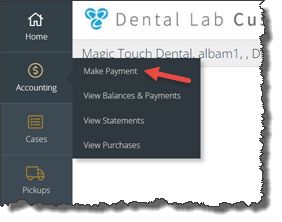
Make Payment navigation
Following form displays:
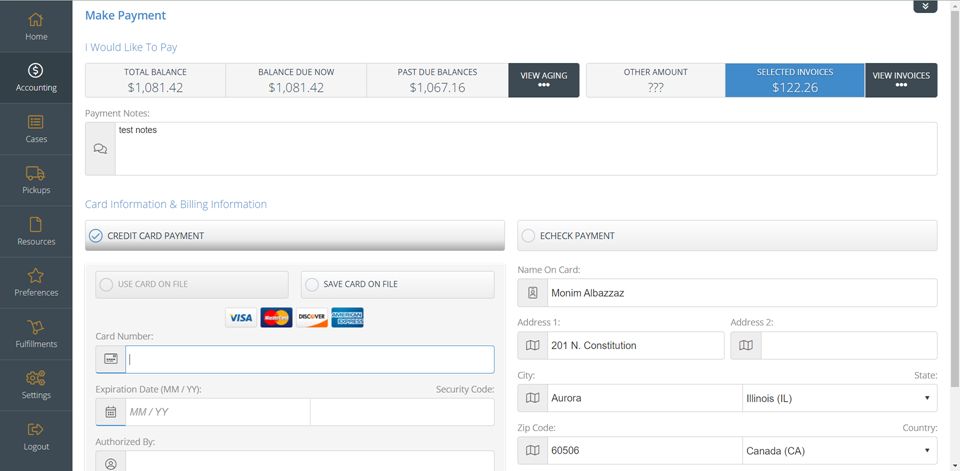
Make Payment form
To make a payment:
1.Following navigation path open Make Payment form.
2.Select what to pay:
•Pay total balance
•Pay balance due now
•Pay past due balances
•Pay a specific amount
•Pay specific invoices
3. Enter payment notes.
4.Payments can be processed by
•Credit Card payments
•eCheck Payments
5.Additionally, you can opt to save Credit Card/eCheck information on file to use for future transactions.
6.To process a payment:
•Select payment type (eCheck or Credit Card)
•Enter payment information
•Enter Billing Name & Address
•Select Payment type (Selected, Total balance, or a specific amount)
•If you choose “Pay Selected Invoices”, ensure that you check the box next to each invoice that you wish to pay.
•Process payment.
See also: